How to pick skills and lessons and set them as a task
Tick what you want
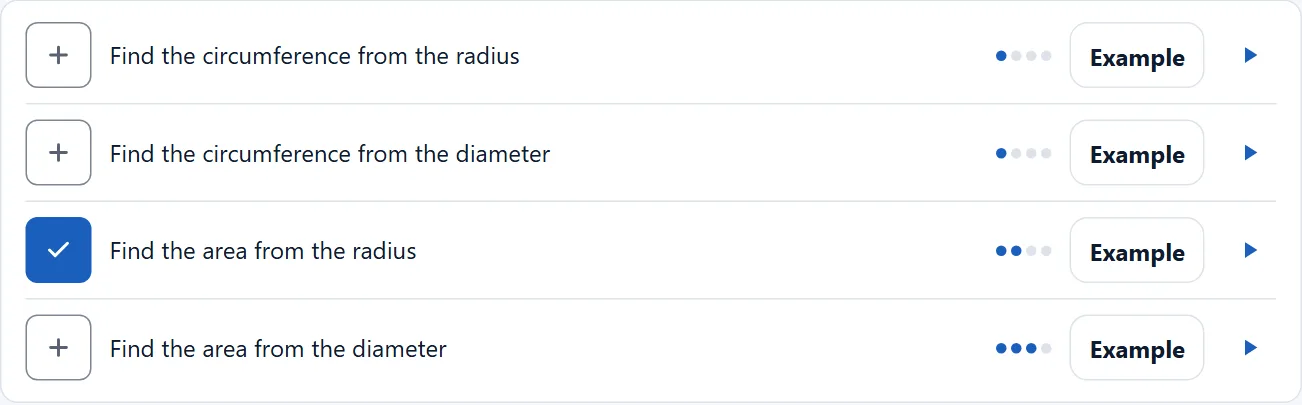
Signed in as a teacher, press + on a skill at vertexacademy.co.nz/skills, or Select under a lesson's or a practice paper's title.
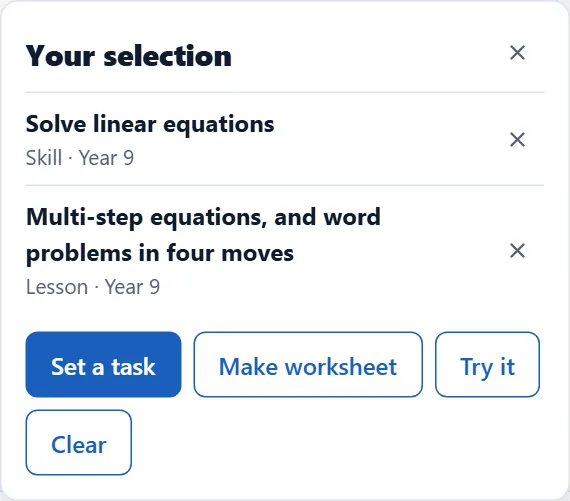
Selection, at the bottom right, counts what you have ticked. Press it to see the list.
On a skill's page, tick one sub-skill instead of the whole skill. Dots show its difficulty, from one to four; Example shows one question; the arrow opens the lesson video.
Set it as a task
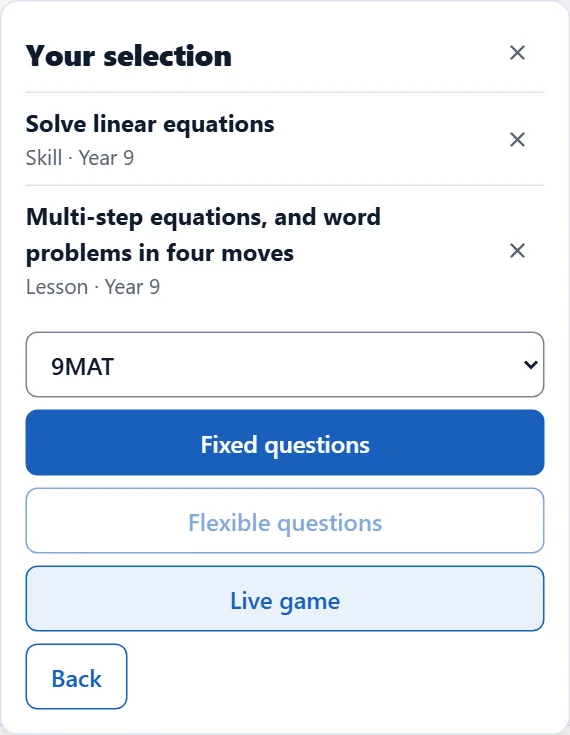
Press Set a task and pick the class.
Fixed questions: everyone gets the same questions.
Flexible questions: each student gets their own numbers. Skills only.
Live game: the first four go into a live quiz.
Answers: Typed (the default) or Multiple choice. Typed skill questions are marked at once, with a Hint button and the worked answer after each one. A test keeps multiple choice.
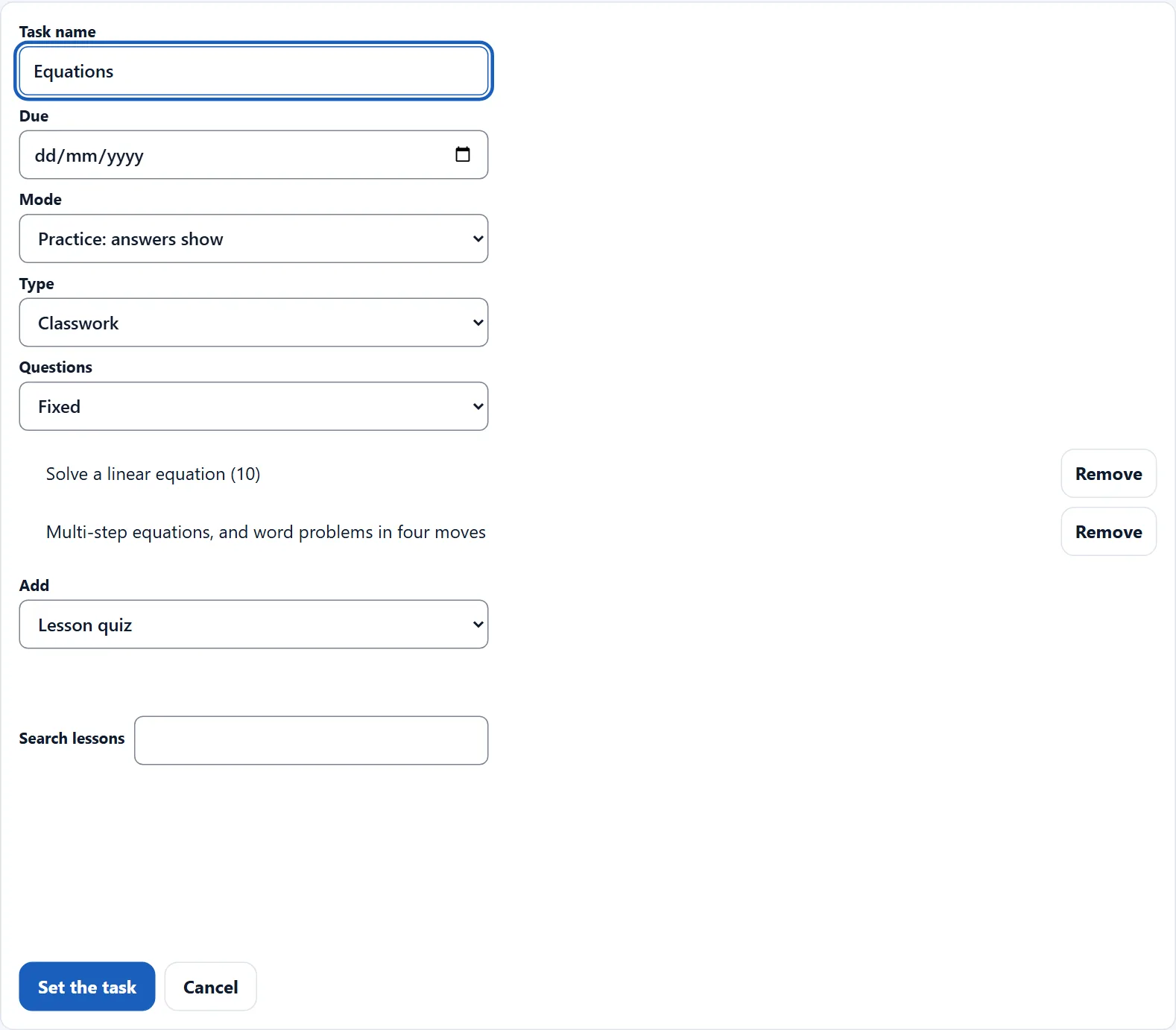
The task form opens with your selection in it. Choose the due day, Practice or Test, and Classwork or Homework, then press Set the task.
Try it first
Press Try it to answer a few questions from the selection yourself. Nothing is saved.